
Overview
If you use Shopify, you can automatically apply the discount codes your customers win in Odicci directly to their Shopify checkout. Odicci natively integrates with Shopify's built-in discount routing, meaning you don't need any custom code to make this work.
Note: This may still depend on your Shopify theme as some heavily customized checkouts and themes may not support this auto apply functionality.
By using a specific URL structure in your Odicci Call-To-Action (CTA) button, the customer's browser will save the discount and automatically populate the promo code box when they reach the final checkout page.
⚠️ Important Prerequisites
Before setting up your URLs, ensure your Shopify discount codes meet these strict requirements. If these are not met, the auto-apply link will silently fail:
-
The code must be "Active" in Shopify. Shopify will ignore the link if the code is scheduled for the future, expired, or doesn't exist yet.
-
No spaces. Ensure your discount code name in Shopify has no spaces (e.g., use
TEST10instead ofTEST 10).
Step 1: Locate your CTA in Odicci
-
Open the Odicci Studio.
-
Navigate to the specific Offer you want to configure.
-
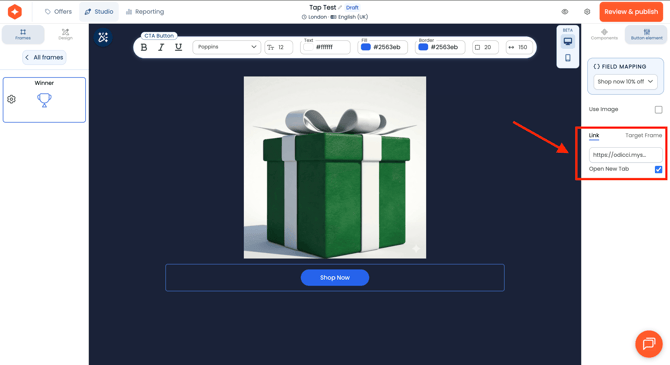
Locate the CTA button settings (where the user clicks after winning/receiving their gift).
Step 2: Choose Your URL Format
Depending on how your campaign is structured, copy one of the following URL formats and paste it into the CTA link field.
Be sure to replace yourstore.myshopify.com with your actual Shopify domain.
Option A: Using a Static Discount Code If every user wins the exact same code, simply add your active code to the end of the URL.
https://yourstore.myshopify.com/discount/YOURCODE
Option B: Using Dynamic Vouchers If you are using the Shopify API connection to create dynamic vouchers, use our %%voucher%% merge field. Odicci will automatically swap this out for the user's unique voucher code when they click the button.
https://yourstore.myshopify.com/discount/%%voucher%%
Step 3: Add a Redirect to a Specific Product (Optional)
By default, the links above will apply the discount and drop the user on your Shopify store's homepage. If you want to seamlessly push the user directly to the specific product they just won a discount for, you can append a redirect rule to the end of your URL.
Simply add ?redirect=/products/your-product-handle to the end of your link.
Static Code with Redirect:
https://yourstore.myshopify.com/discount/YOURCODE?redirect=/products/your-product-handle
Dynamic Voucher with Redirect:
https://yourstore.myshopify.com/discount/%%voucher%%?redirect=/products/your-product-handle
(Example:
https://odicci.myshopify.com/discount/%%voucher%%?redirect=/products/coffee-house-blend)
How to Test This
Because browser cookies can sometimes interfere with testing, follow these steps to ensure it is working properly:
-
Open a fresh Incognito / Private Browsing window.
-
Paste your configured link into the address bar and hit enter.
-
Add an eligible item to your cart.
-
Click Checkout.
-
The discount box on the final payment page should automatically be filled out with the total price reduced.