
Introduction
This integration document will guide you through the steps on how to integrate Odicci with Shopify.
How do I integrate Odicci with Shopify ?n
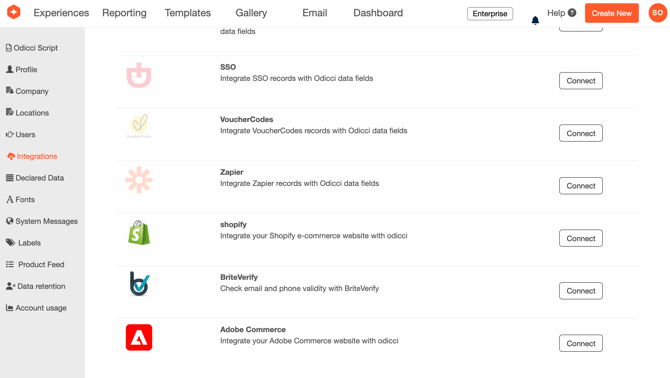
In your Odicci account click on the icon in the top right corner and select settings. Within settings navigate to “Integrations”, scroll to Shopify and click on "install".
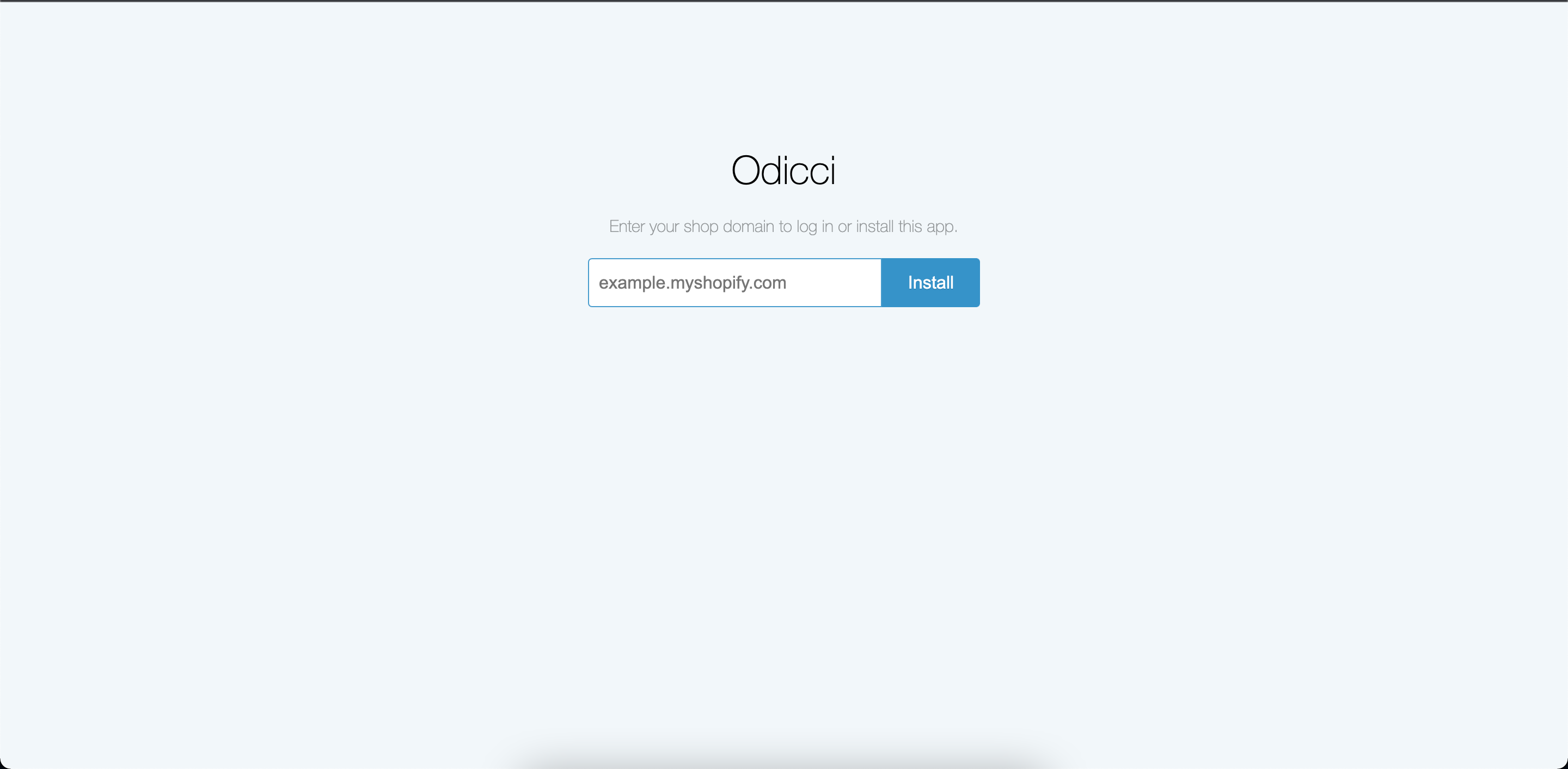
Make sure you have your Shopify URL at hand; and copy / paste it into the below screen and press "Install".
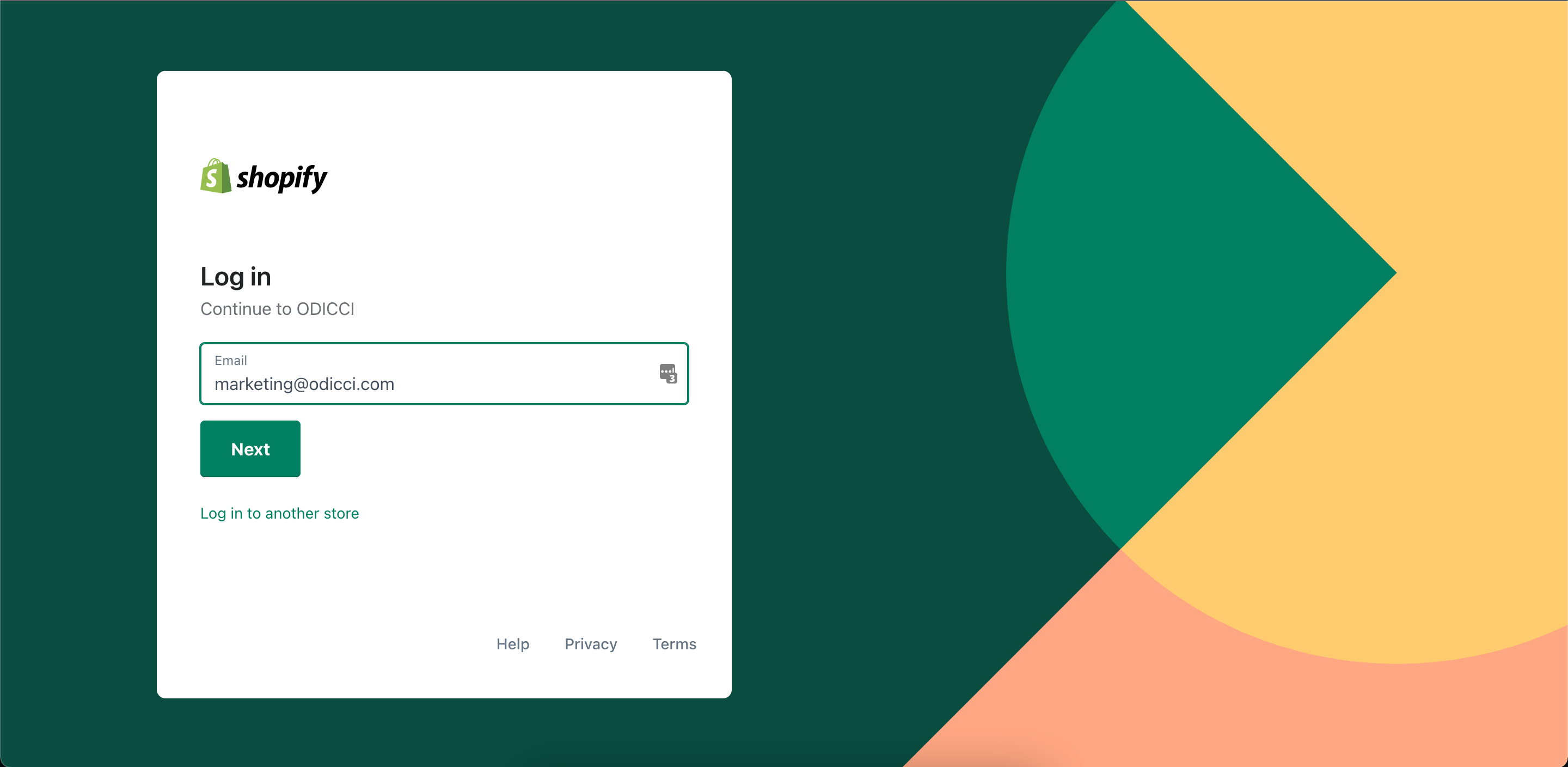
Follow the instructions to continue to login.
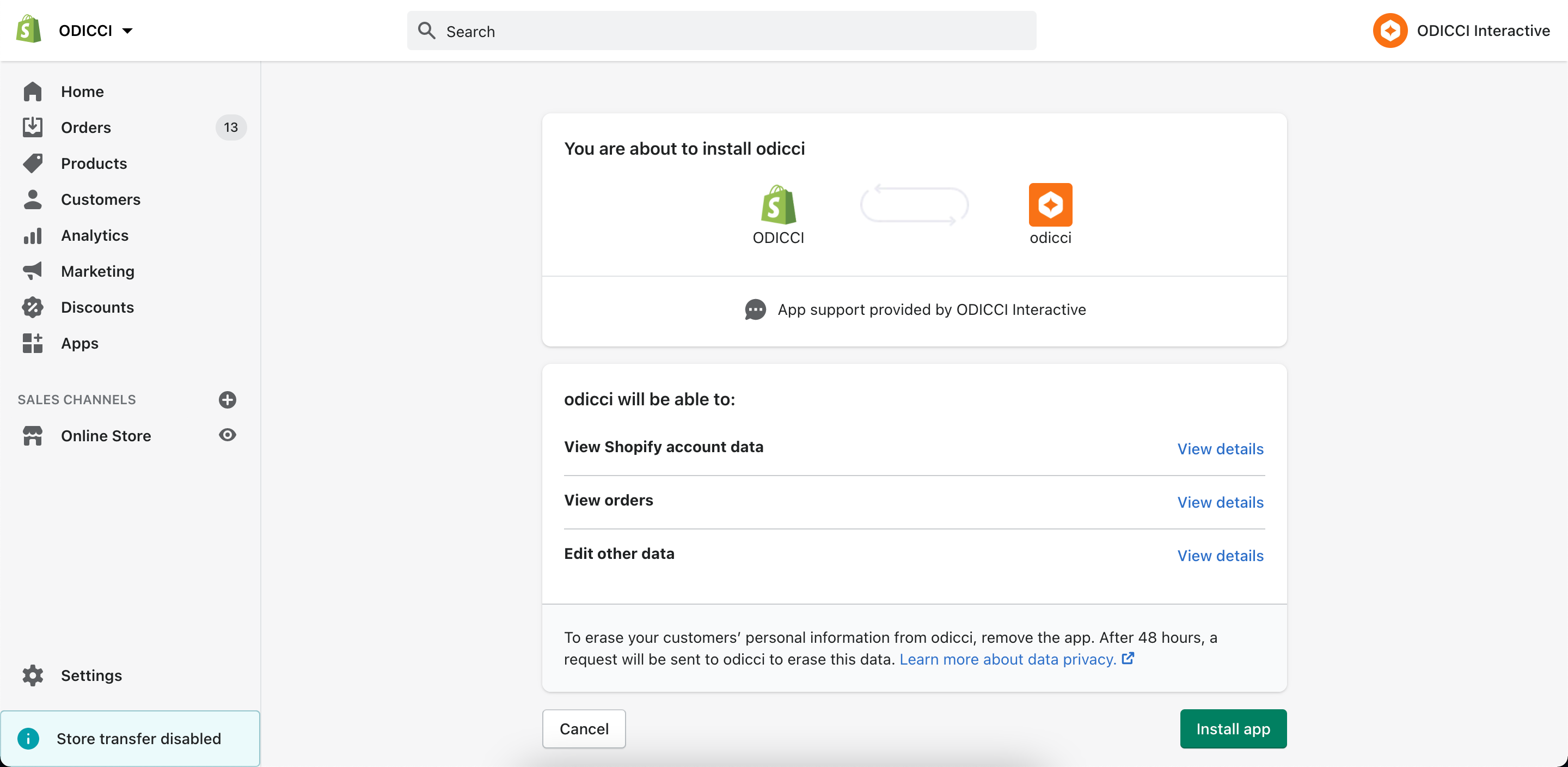
Once you have successfully logged in, you should see the screen below.
Press "Install app".
After installing you should be redirected back to the Odicci settings and you will be successfully logged in, and you should see you are connected to your store.
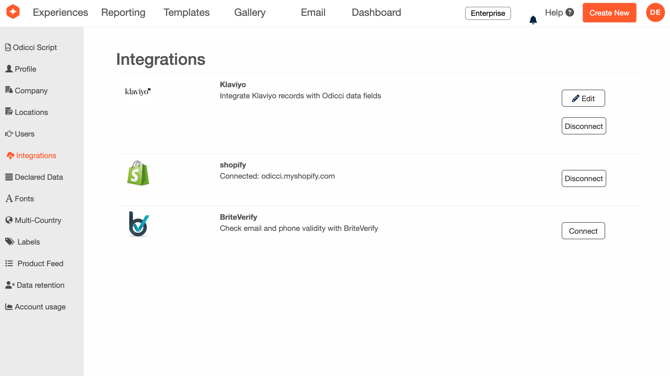
Please note: You will also see the Odicci App will be installed under your Apps in the Shopify Admin.
How to Cancel your subscription?
-
Login to your Shopify Account - Go to Settings - Apps and sales channels :
-
To cancel your subscription, Uninstall the Odicci App
-
If you are currently within the billing cycle you may still be charged for this month - however all future payments will be cancelled.
-
Next...
> Connect Shopify Discount Rules with Odicci Experiences
Odicci experiences can generate high volumes of API traffic in short bursts (for example during email campaigns, social pushes, or peak purchase hours).
To avoid delays or failures for end users (e.g. voucher issuance, wallet / account lookups, identity validation), please ensure that any rate limiting or throttling on your side is configured to allow the required traffic from Odicci.