
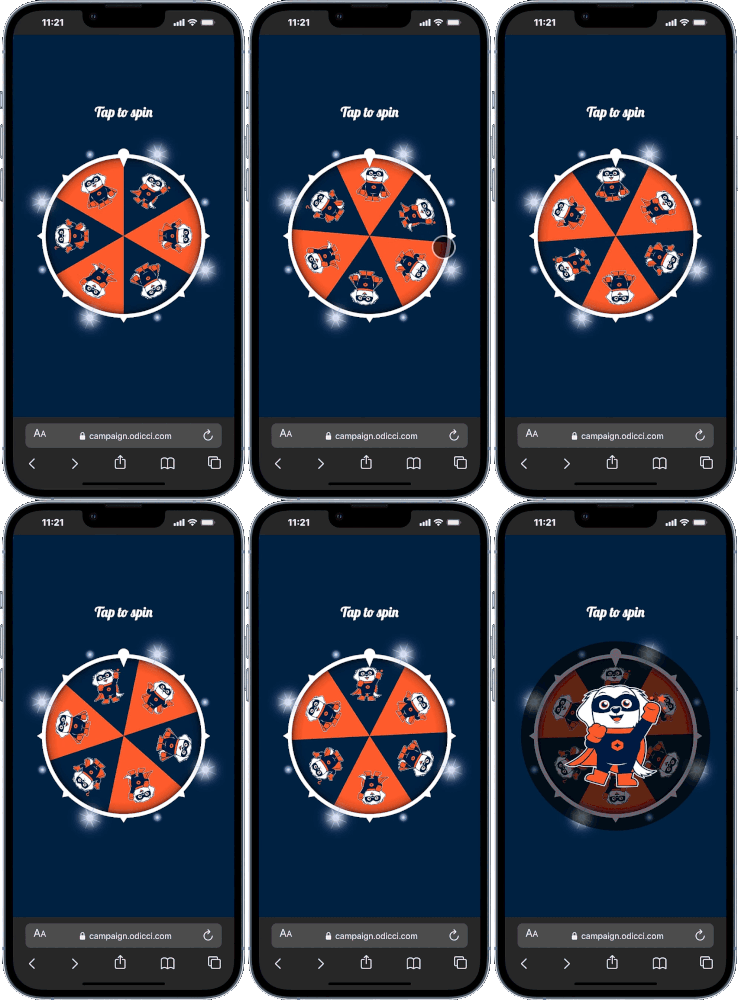
Ready to give your audience a spin? The Wheel of Fortune is a high-engagement tool designed to capture customer data during live events or via on-pack QR codes. It turns the simple act of data entry into a rewarding game of chance that keeps users coming back for that winning feeling.
Note: This guide focuses specifically on the set-up for the Wheel of Fortune. For general setup and offer configuration, see our Design Your First Experience guide.
Journey Overview
- Step 1: The Setup - Choosing your Creation Path
- Step 2: The Mechanics - Designing Your Wheel
- Step 3: The Rewards - Linking offers and images to your wheel
- Step 4: The Launch - Publishing and embedding your experience
Step 1: The Setup
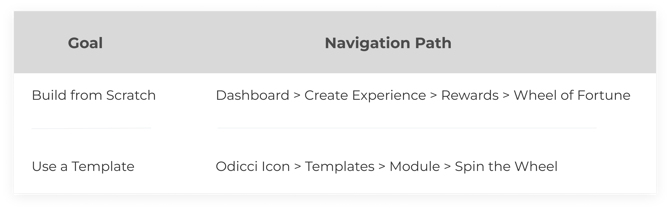
To begin building your very own Spin the Wheel, select your creation path:
Step 2: Designing Your Wheel & Mechanics
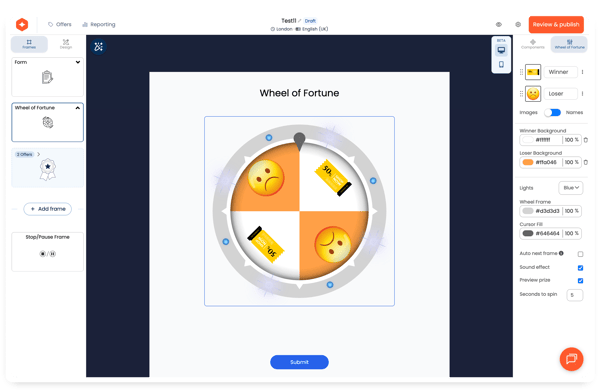
Click on Wheel of Fortune frame to access customisation options on the right. This is your "control center" for both the machine's look and its game logic.
Slices & Offer Identity
Manage how your rewards appear on the wheel itself.
- Images vs. Names: Use the toggle to choose whether the wheel displays Icons/Images or Text Names for each slice.
- Visual Assets: Click the "add image" icon next to any label to upload a custom graphic for that specific slice.
Styling the Machine
Match the wheel to your brand's aesthetic with these specific color controls:
- Slice Backgrounds: Set distinct colors for your Winner Background and Loser Background to help the winning segments stand out.
- Wheel Frame & Cursor: Use the color pickers to customize the Wheel Frame border and the Cursor Fill (the pointer).
- Interactive Lights: Select a color from the Lights dropdown to add an arcade-style glow to your experience.
Game Mechanics & Interactivity
Fine-tune the "feel" of the spin to build maximum anticipation:
Seconds to Spin: Enter the exact duration of the spin to control the game's pace.
Sound & Preview: Toggle the Sound effect for auditory feedback and enable Preview offer so the winning reward pops up clearly once the wheel stops.
Auto Progression: Check Auto next frame if you want to automatically move the user to the next stage after their win.
Step 3: Connecting the Offers
The wheel is more than just a visual; it is a gateway to your rewards:
- Offer Configuration: Head to the Offers page to add as many rewards as your campaign requires.
- Visuals: Assign a notification image to each offer; these images will be used directly within the wheel slices.
- Alerts: Link a specific notification email to each offer so winners get their details instantly.
Step 4: Going Live
Once your build is finalized, it is time to share it with the world via the Confirm screen:
- Publishing: Hit the publish button to make your experience live.
- Embedding: Access ready-to-use codes for Pop-ups or Iframes to place your wheel wherever your customers are.