
The Select a Random Winner feature allows you to pick a winner from all completed entries in your Odicci experience — whether it's a game, quiz, survey, or prize draw.
This is useful when you want to remove bias from your manual selection process.
🎥 Watch a quick walkthrough
Want to see the full flow in action?
How to Use Select a Random Winner
Select a Random Winner
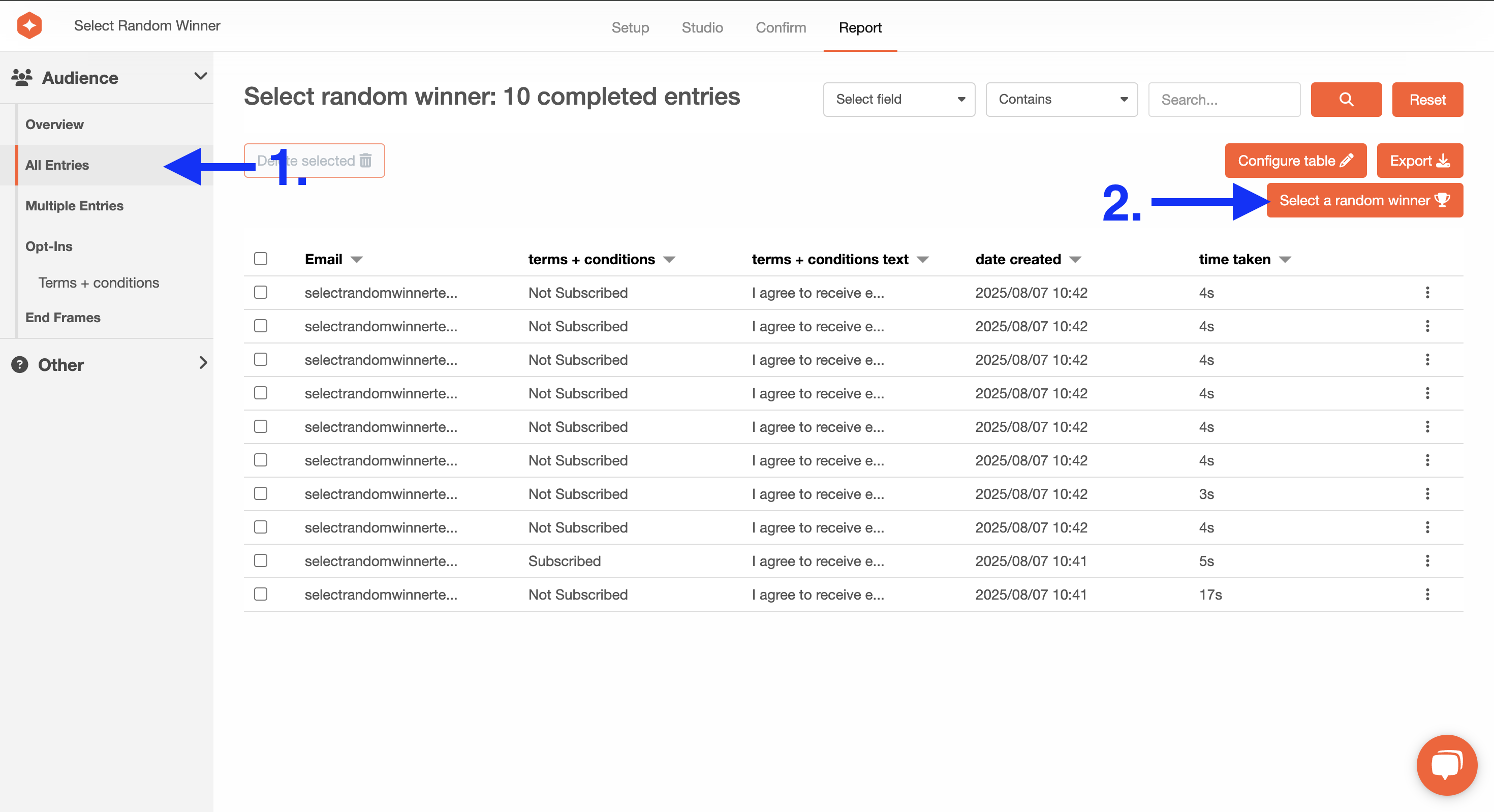
Go to the experience's Report tab.
- Click the Report tab in the top navigation bar.
Click “All Entries” in the left-hand menu.
- This will show all completed entries from your campaign.
Click the “Select a random winner” button.
-
You'll find it in the top right corner of the report view.
Review the randomly selected winner.
- A pop-up modal will appear showing:
- The winner’s email
- Their prize (if one exists)
-
Option to send an email notification
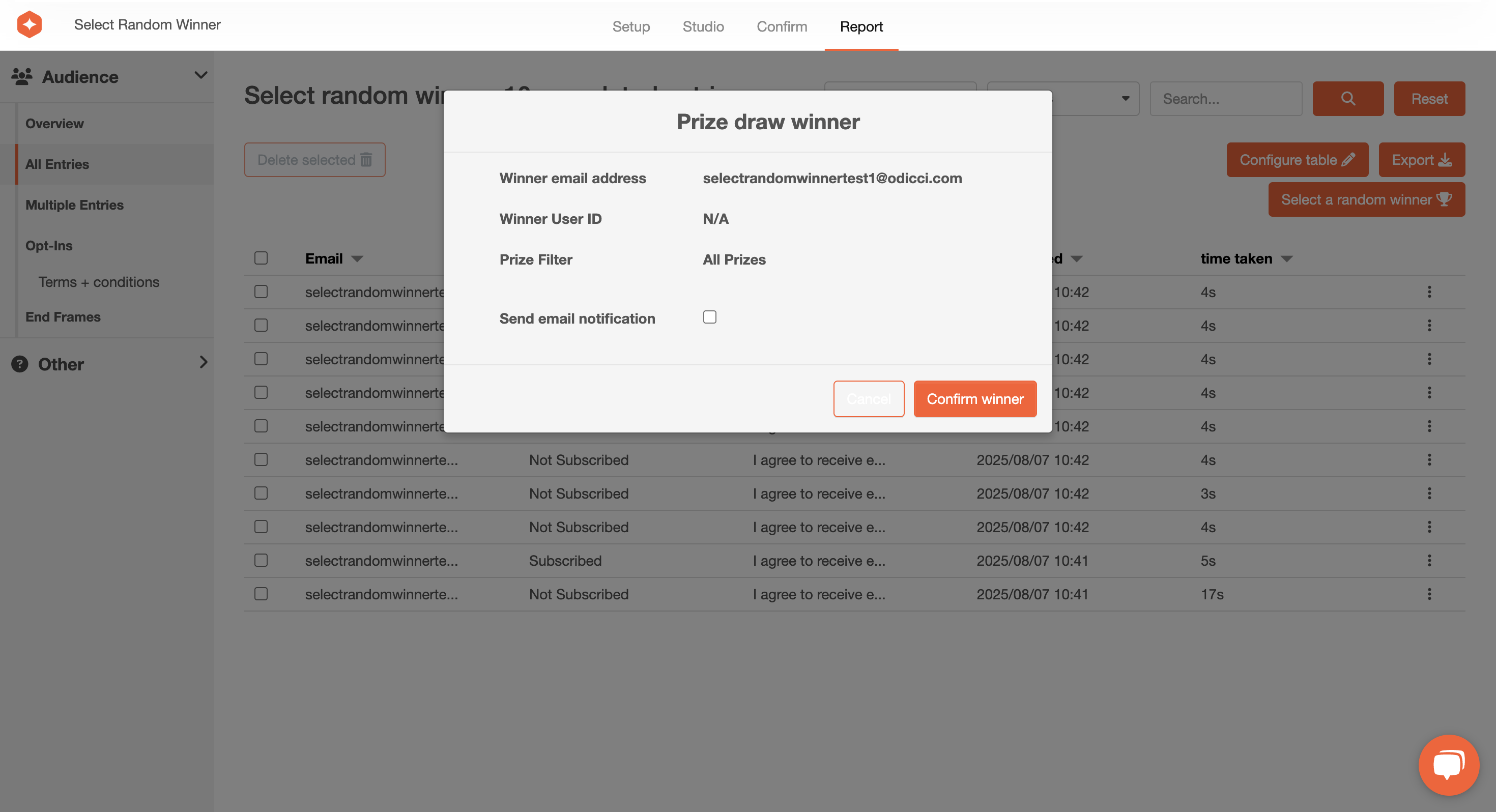
(Optional) Send an email notification.
- If you tick Send email notification, an email will be sent directly to the winner.
Click “Confirm winner.”
- This will finalize the selection and record the winner.
What if there's no prize?
If your experience doesn’t have a prize (for example, it's a profiler quiz or Prize Draw), you can still use Select a Random Winner .
However, if you tick the “Send email notification” option, you’ll be prompted to select an email template manually.
This is because: Normally, email templates are attached to individual prizes. - If there’s no prize, there’s no template to pull by default.
Instead, you'll be shown a modal asking you to select a template from your account.
- Don’t worry — your account always has at least one default template available.
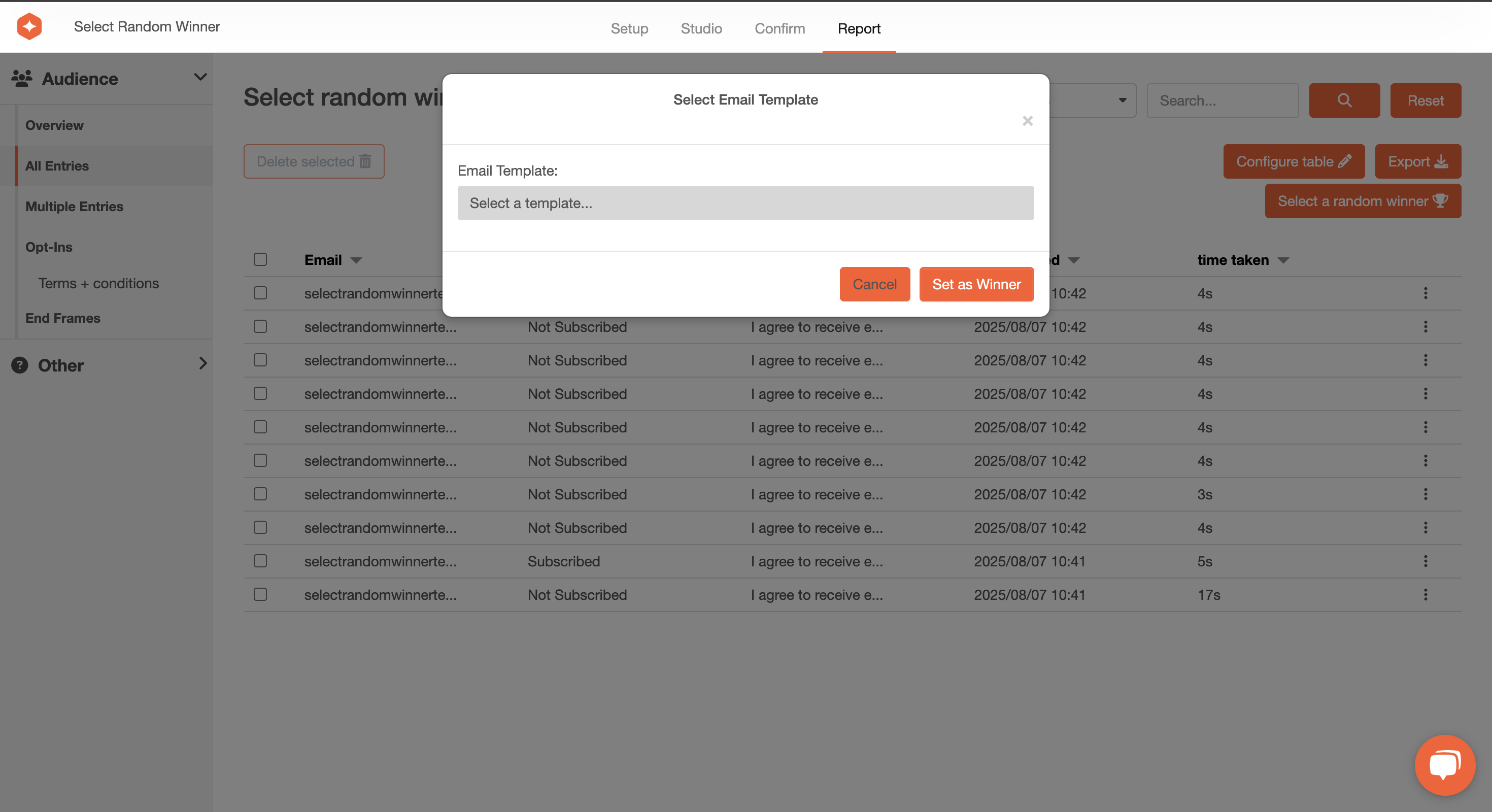
Just choose a template and click “Set as Winner.” Easy!
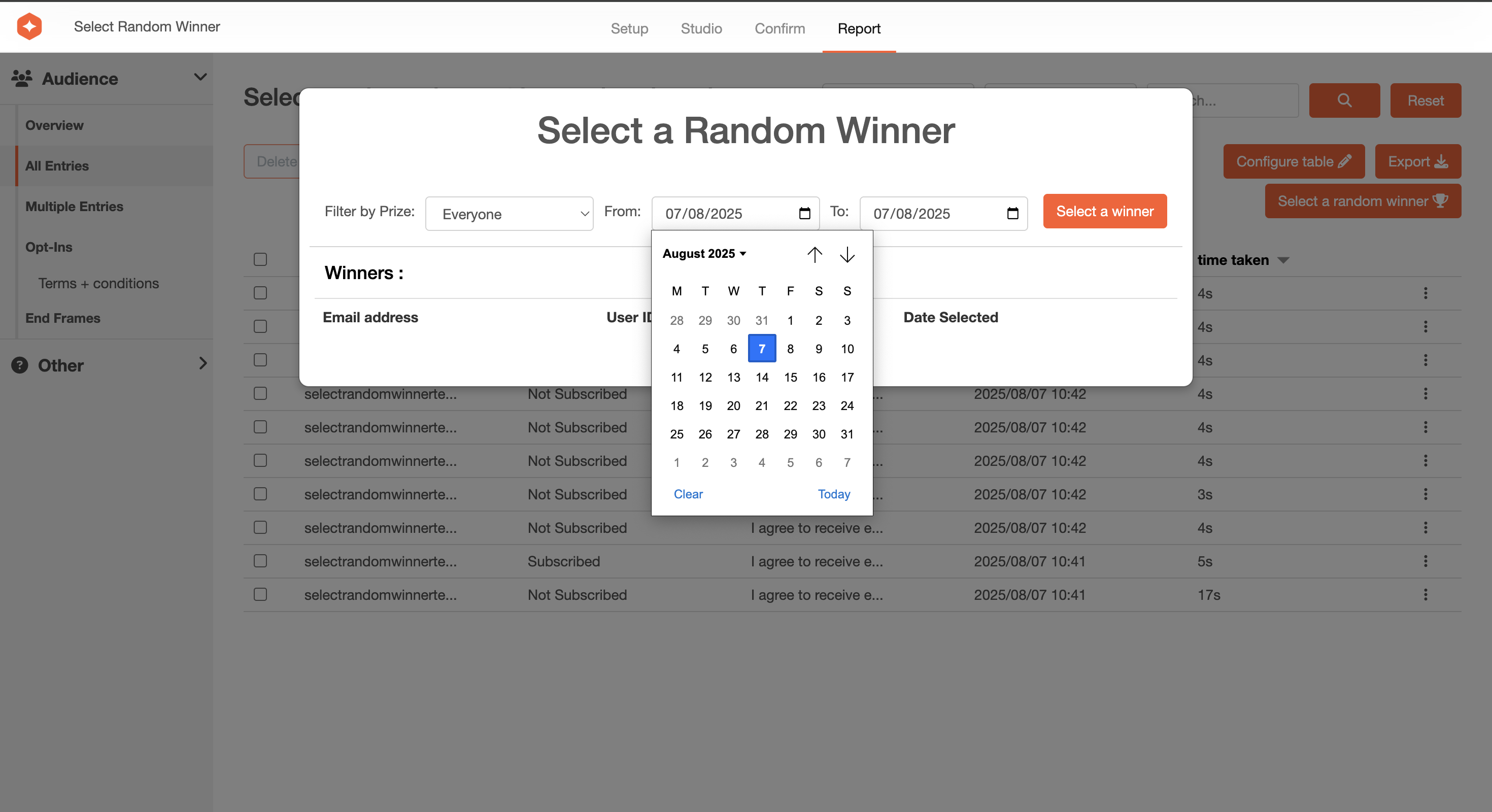
Filter by Date or Prize Type
(Optional): You can also filter your draw to select a winner based on:
- A specific date range (e.g. last week’s entries)
- A specific prize (if you have multiple)
Summary
|
Step |
Action |
|
1 |
Go to Report → All Entries |
|
2 |
Click Select a Random Winner |
|
3 |
(Optional) Tick Send email notification |
|
4 |
If prompted, select an email template |
|
5 |
Click Confirm winner |