
The Scratch to Reveal experience invites users to interact with your brand by sliding an image to unveil a hidden reward, turning lead capture into a moment of discovery.
Note: This guide focuses specifically on the set-up for the Scratch to Reveal. For general setup and offer configuration, see our Design Your First Experience guide.
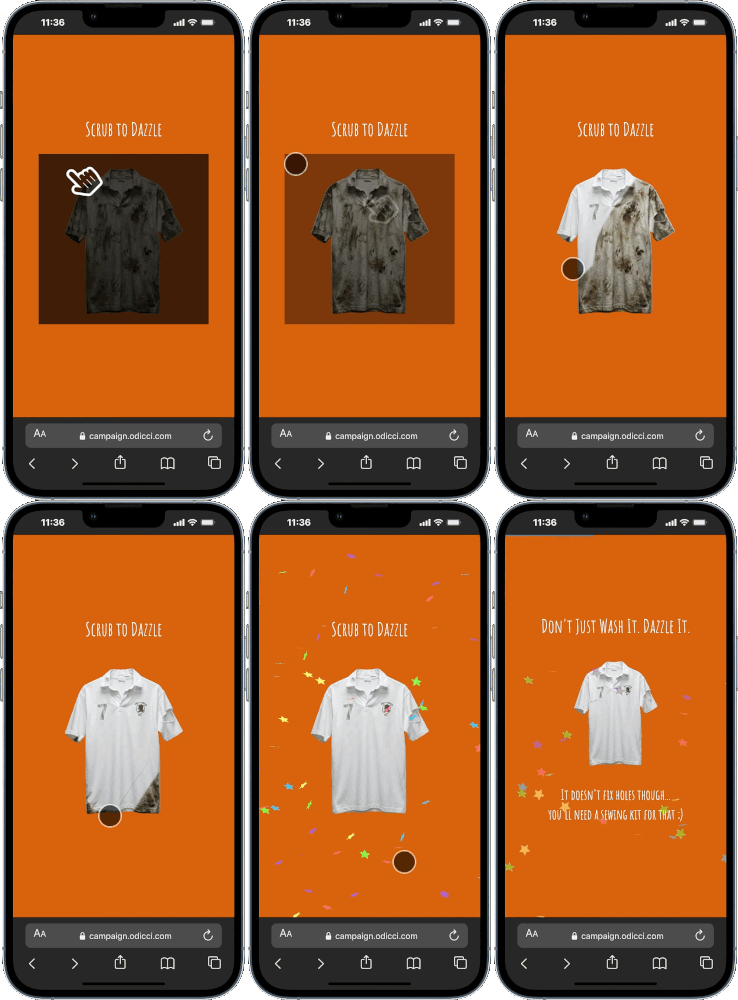
Journey Overview
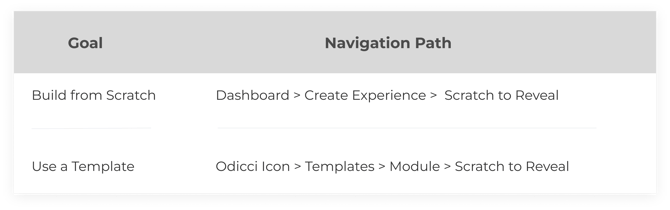
Step 1: The Setup
To design your experience, first select your creation path:
Step 2: Studio Customization
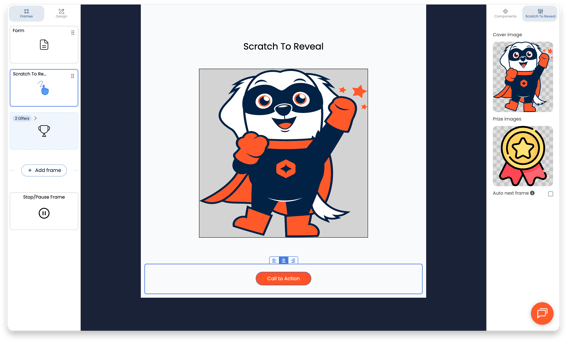
Clicking on the tap area opens the Scratch To Reveal settings panel on the right. Use these tools to fine-tune the interaction:
- Cover Image: Upload the default image that covers the offer (Recommended ratio: 1:1).
- Offer Image: Upload the image that will be revealed after the scratch
- Auto Next Frame: Check this box if you want to automatically redirect the user to the next frame after the reveal.
Step 3: Connecting the Rewards
Your game is a gateway to your offers, which are managed in the Offers page:
- Offer Management: Add as many rewards as your campaign needs.
- Visuals & Alerts: Assign a notification email and a specific offer image to each reward. These images are what users see when they successfully scratch to reveal their win (optional).
Step 4: Going Live
Once your build is finalized, head to the Confirm screen to launch:
Publishing: Access ready-to-use codes for Pop-ups and Iframes to place your experience wherever your customers are.