
The Profiler is one of our most powerful tools for audience segmentation. It allows you to profile your audience through an interactive survey, providing them with a personalized result (or "Profile") based on their specific inputs. It’s essentially a "personality quiz" for your brand that helps you understand exactly who your customers are while providing them with a fun, tailored experience.
Note: This guide focuses specifically on the set-up for the Profiler Quiz. For general setup and offer configuration, see our Design Your First Experience guide.
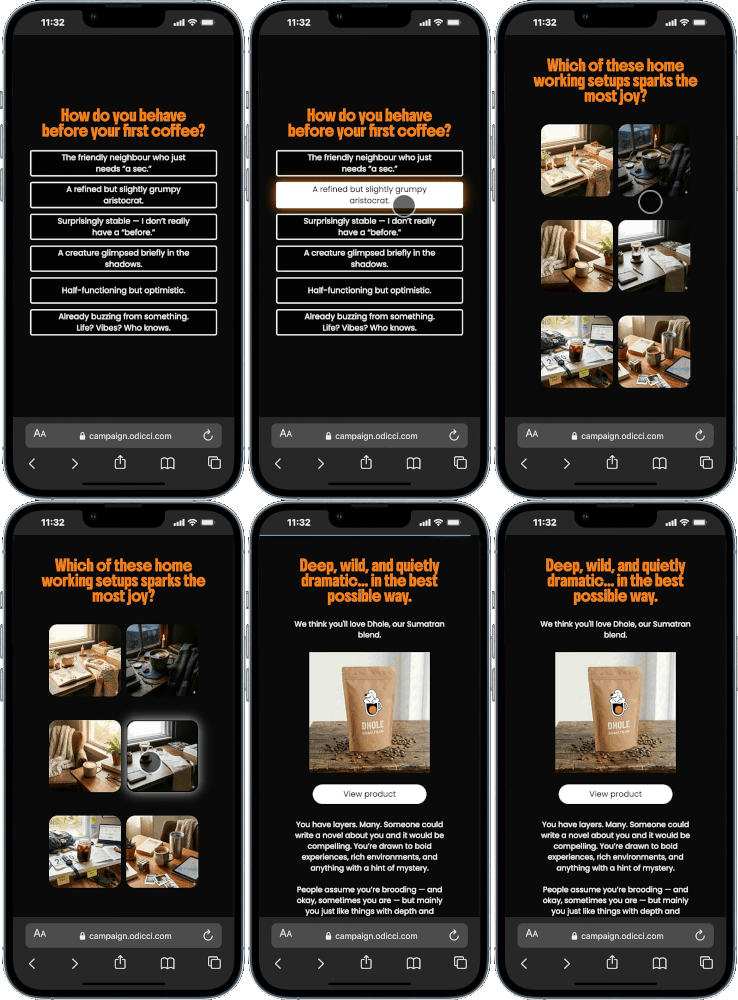
Journey Overview
- Step 1: The Launchpad - Choosing your creation path.
- Step 2: The Personas - Setting up your multiple Profiles.
- Step 3: The Conversation - Building survey frames in the Studio.
- Step 4: The Insight - Analyzing reports and syncing data.
- Step 5: The Grand Opening - Publishing and embedding.
Step 1: The Launchpad
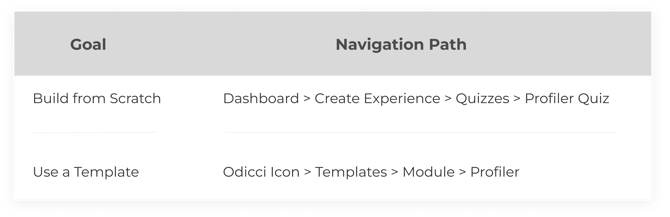
Ready to start learning about your customers? You can set up a Profiler in two ways:
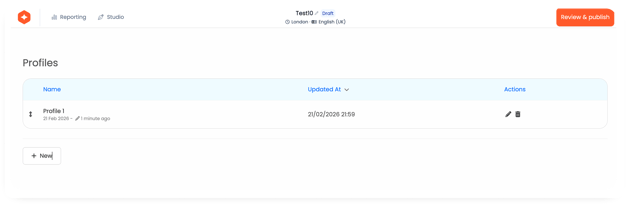
After completing the initial setup options, you will find a dedicated Profiles tab where the core logic of your campaign lives.
Step 2: Defining Your Personas
The Profiles tab is where you create the various "outcomes" your users can receive. Think of these as the different customer segments you want to identify.
- Create Multiple Profiles: You can add as many profiles as your campaign requires.
- The Dashboard: View all created profiles in a single dashboard. To make changes, click the Edit button (located to the left of the delete icon).
- Outcome Details: Each profile acts as a offer. You must add:
- A unique Name.
- A Offer Type.
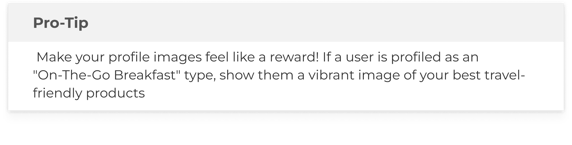
- An Image (click the "Add Image" button to upload your own content).
- A linked Email Template to send the user their results.
.png?width=310&height=474&name=Frame%201491%20(1).png)
Step 3: Crafting the Survey
Once your profiles are ready, head to the Studio to create the questions that lead users to them.
- Interactive Frames: Use Multi-text or Multi-image frames to build your survey.
- The Logic: Within these frames, you map specific answers to the profiles you created in Step 2.
- The Match: Based on the inputs provided by the user, the platform automatically picks the best-matching profile for them at the end.
.png?width=585&height=376&name=MacBook%20Air%20-%202%20(2).png)
Step 4: Insights & Integrations
The Profiler is a goldmine for data. You can track how your audience is trending in real-time.
- Detailed Reporting: Visit the Report tab to check statistics and see which profiles are the most popular among your users. Check out this article for additional information on Reporting.
- CRM Sync: In the Confirm screen, you can integrate the experience with your CRM.
- Advanced Syncing: If you need to sync entries even when users haven't opted into marketing, check the "Synchronise NON OPT-IN entries" box.
Step 5: Going Live
Once your build is finalized, it’s time to share it with the world. Head to the Confirm screen to hit Publish.
You can easily embed your Profiler using:
- Pop-ups: Great for immediate engagement on your homepage.
- Iframes: For a seamless, native feel within your site content.