
Part 1: Planning Your Logic Quiz
Welcome! Logic branching quizzes are fantastic tools to help your customers overcome choice overload and find exactly what they need.
Before you touch the Studio, planning your quiz structure is the most critical step. A well-mapped quiz saves you hours of build time and ensures a smooth experience for your customers.
Quiz Best Practices
-
Keep it short: Aim for 3 to 4 questions. You only need enough information to make a solid recommendation, and you can always expand later.
-
Limit result options: The goal is to narrow down choices. Recommend 2 to 3 items maximum per result to avoid overwhelming the user.
-
Ensure natural flow: Questions should logically progress. If you sell clothing, ask about the occasion before asking about the season.
Mapping Your Quiz
We highly recommend using a mind-mapping tool (like Miro or Lucidchart) or a simple spreadsheet to plot your questions, answers, and results.
When mapping, look for opportunities to consolidate answers. If you create a unique result for every single combination of a 3-question quiz (with 3-4 answers each), you could easily end up with over 30 different offer frames to build.
Consolidation Example:
-
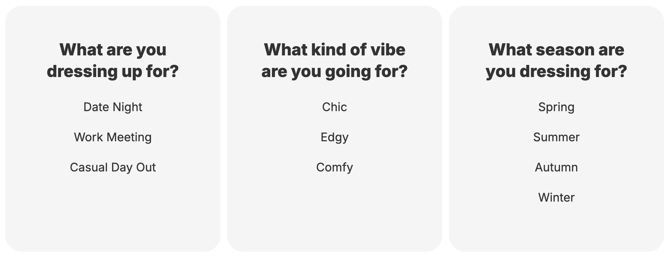
Original Question 1: What are you dressing up for? (Date Night, Work Meeting, Casual)
-
Original Question 2: What vibe are you going for? (Chic, Edgy, Comfy)
- Original Question 3: What season are you dressing for? (Spring, Summer, Autumn, Winter)
Instead of keeping "Date Night" and "Work Meeting" separate, combine them into a single "Formal" path. You can then use Question 2 to differentiate the recommendation ("Chic" for work, "Edgy" for a date).
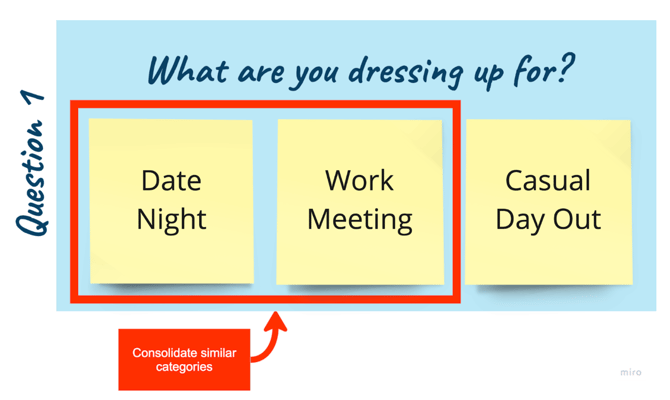 Before
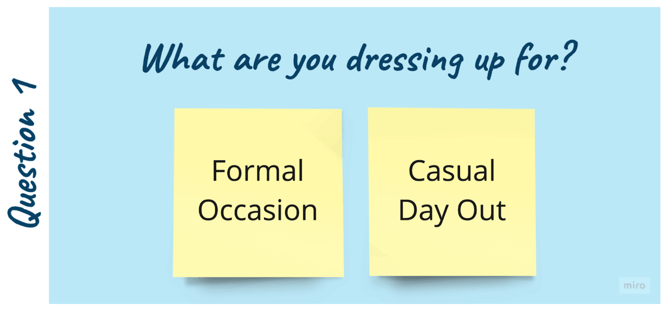
After
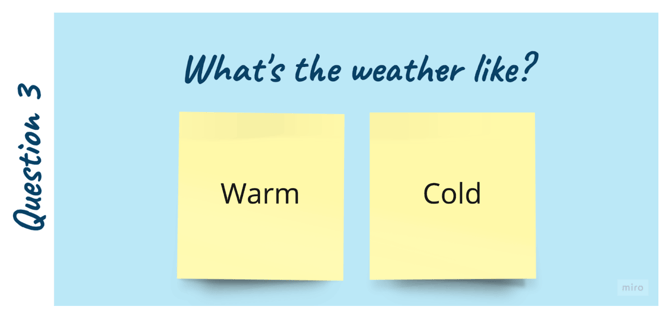
Similarly, reframe questions to limit answers. Instead of asking "What season is it?" (4 answers), ask "What's the weather like?" (Warm, Cold - 2 answers).
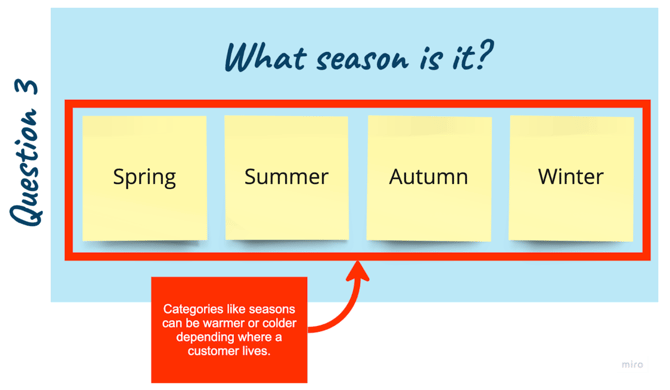
Before
After
Naming Convention Tip: Name your final results (Offer Frames) as the exact sequence of answers that lead to them. For example, if a user selects Formal, Edgy, and Warm, name that result "Formal, Edgy, Warm". This makes linking your logic later incredibly easy.
Part 2: Configuring Logic in Odicci
Once your mind map is complete, it is time to build it in Odicci!
1. Choose the Quiz Type
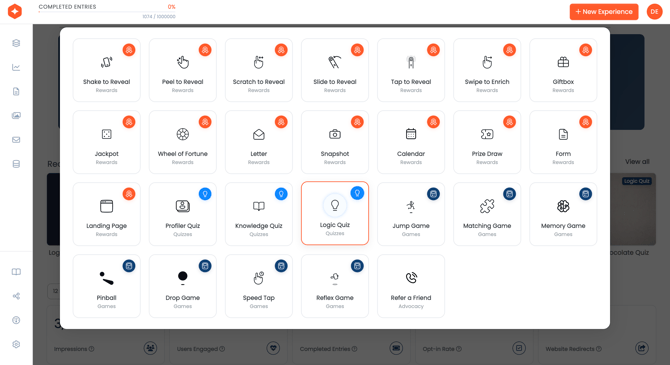
From the Odicci home screen, navigate to + New Experience in the top navigation bar and select Logic Quiz.
2. Configure Your Offer Frames (Results)
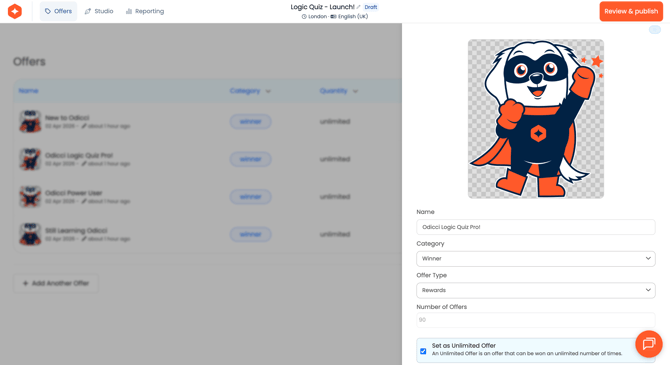
In Odicci, your final product recommendations are called "Offers" or "Offer Frames." Before mapping the journey, you must build the destinations.
-
Navigate to the Prizes tab and click New.
-
Name your Offer Frame using the naming convention you established in your mind map (e.g., "Formal, Edgy, Warm").
-
Set the Number of Prizes to Unlimited so multiple users can reach this recommendation.
-
Repeat this process until all your potential product recommendations are created as Offer Frames.
3. Map Your Quiz Answers (Logic Paths)
With your questions built and your Offer Frames ready, it is time to connect the dots.
-
Go to your Studio workspace.
-
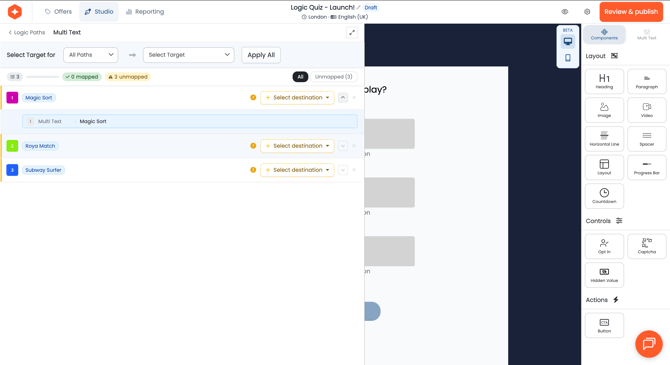
Hover over your first question frame and click the Logic Paths icon that appears on the right.
-
For each answer choice, use the dropdown menu to select the Target Frame (the next question the user should see).
-
If all answers on a specific frame lead to the exact same next question, use the Set Target Frame for ALL PATHS button at the top to save time.
4. Connect Final Answers to Offer Frames
For your final question, the logic paths will not point to another question; they will point to your Offer Frames.
-
Open the Logic Paths menu for your final question frame.
-
Look at the answer combination for each path.
-
Match it to the correspondingly named Offer Frame.
-
Once all paths are assigned, use the Preview Mode to click through your quiz and verify that every answer combination leads to the correct product recommendation.