
The Jump Game is a vertical challenge where the player tries to make the character in the game jump on various platforms as the screen moves upward. The goal is simple: keep climbing, avoid falling, and snag prize items for extra points. It is the perfect experience for rewarding your top-scoring customers or driving entries into a high-stakes prize draw.
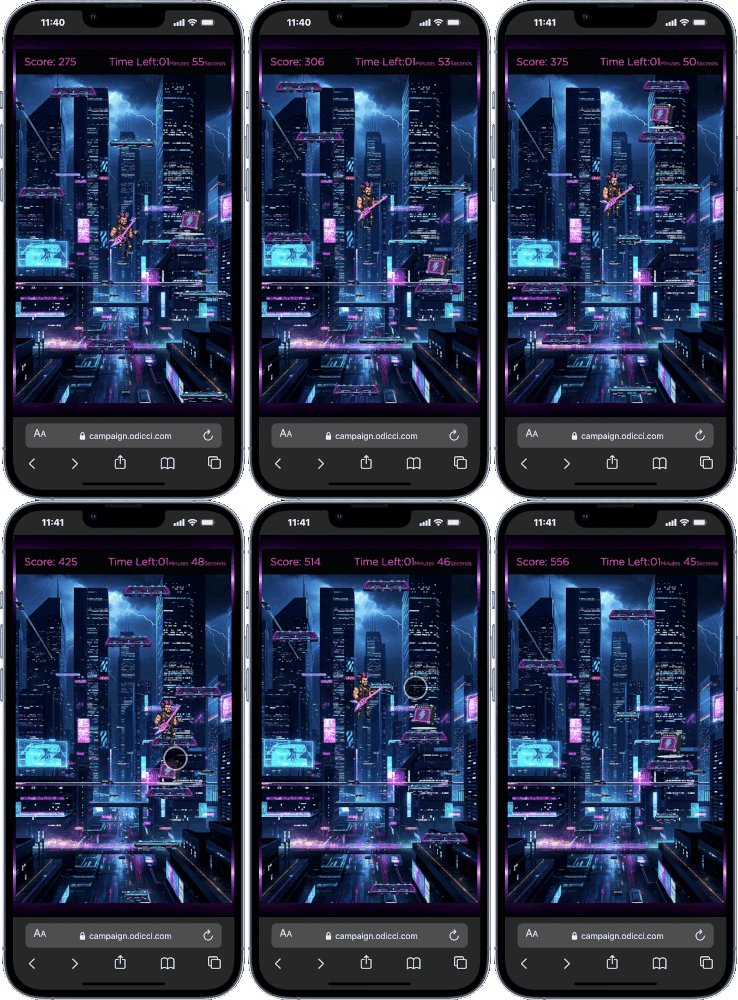
Journey Overview
- Step 1: The Launchpad - Choosing your creation path and setup details
- Step 2: The Rules - Defining the rewards
- Step 3: The Arena - Designing the world, platforms, and character
- Step 4: The Scoreboard - Mapping points to your CRM and styling high scores
- Step 5: The Replay - Setting up "Play Again" loops
Step 1: The Launchpad (Setup)
To get your character moving, you first need to choose how you want to build your experience. You can start with a blank canvas or jump-start your design using a pre-built template from our library.
Select the method that best fits your workflow:
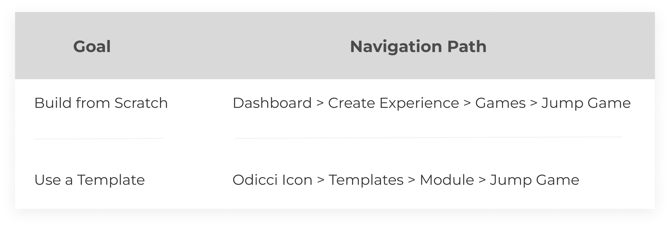
Once you’ve selected your starting point, you’ll reach the Setup page to define the "rules" of your campaign.
- Internal Name: Give your experience a clear title so your team can find it easily in the dashboard later.
- Language: Select the primary language for your game's interface.
- Duration: Set the specific start and end dates for your live campaign.
Once your foundation is set, hit Next to move on to the offers!
Step 2: Defining the Reward (Offers)
Every game needs stakes. Configure your winners and losers here.
- The Unlimited Rule: You must have at least one unlimited prize as a fallback.
- Custom Wins: Add additional offer tiers to match different score thresholds.
Step 3: Designing the Arena (Studio)
The Studio is where you customize the visual identity of your vertical world.
Data Capture Frame
The first form frame in the Jump Game experience is the Data capture form which is meant to capture all relevant customer information fields that you want including a player name if you'd like to use a leaderboard. You can also add the relevant Static Components for styling.
Once your Data capture form is ready, you can move on to the "Jump Game" frame.
World & Platform Assets
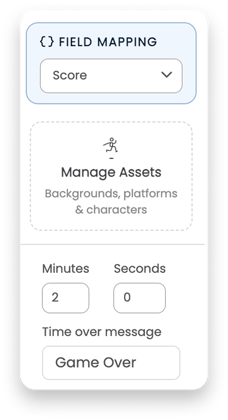
Navigate to the Styling and Assets menu to edit the following items:
- Background Image: The backdrop of your vertical climb.
- Platform Assets: Upload images for standard, small, and moving platforms.
- Character Assets: Provide different images for your character to create a "jumping" animation.
Scoring Items
Under Items, upload the "bonus" objects players can jump on for extra points:
- Item Value: Assign point values to each item.
- Frequency: Use the Drop Rate to determine how often these items appear
.png?width=670&height=317&name=Frame%201499%20(1).png)
Step 4: The Scoreboard (High Scores)
The Highscores Frame is a standalone destination with its own unique URL.
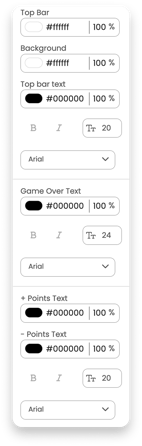
Visual Style: Customize every color from the table header to the specific row highlighting the winner.
The CTA: On your "End Frame," add a button that redirects players to this Highscores URL so they can see where they rank.
Step 5: Want them to play again?
- On your End Frame (Winner Frame), add a CTA button.
- On the Call To Action Button configuration popup:
- Select the Field ID.
- Select the Target Frame tab.
- Select the jump game frame from the drop-down menu.