
Overview
Odicci can support multiple-languages within an experience or experiences in different languages. For example, you can have one experience with 10 different language translations within it or you could have 10 different experiences for each language.
Account Settings
For both options, setup starts within 'Settings>System Messages'
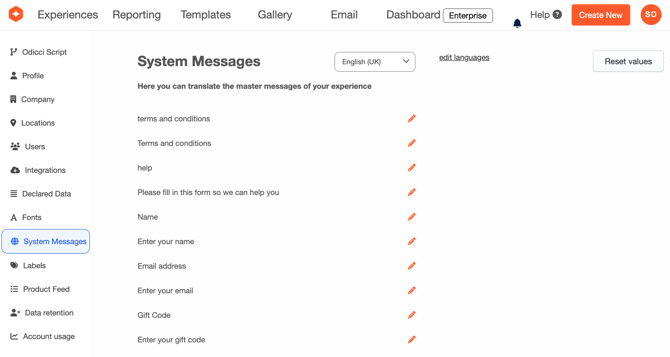
From here you can click 'edit languages' and then tick each language you'd like to enable. This will then switch on support for each language.
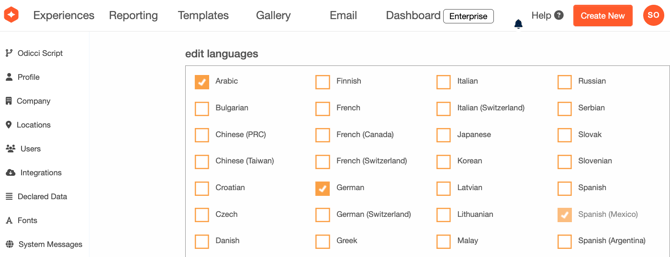
This will automatically populate translations for all of the system messages within experiences but you can edit those if you'd prefer different text to display.
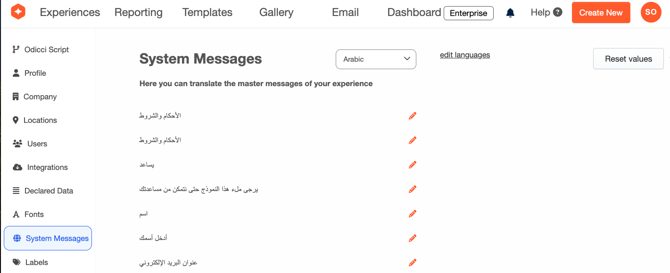
Now this has been completed, you can move to your experience.
Experience Setup
On the experience setup tab, select the language you'll be creating the experience in. If you'll be using multiple languages within the same experience, make sure to choose the default language you'd like to display the experience in.
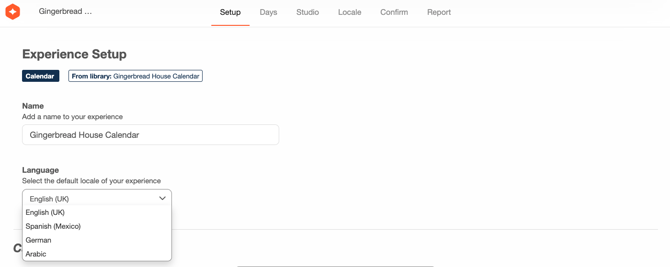
This will be the default language the system messages will be shown in such as 'Terms and Conditions".
If creating an experience in a single language, you can now continue to setup your experience as usual.
If you would like to use multiple languages within the same experience, you will need to enable locale.
Locale Setup
Within the studio in the configuration menu, you will need to navigate to the 'Options' tab and tick 'Multilingual Experience'
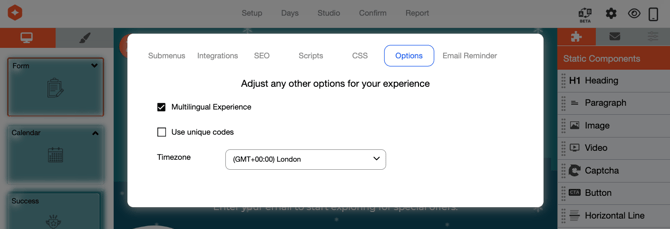
When you close the modal, a new option will appear in the top navigation after a few seconds for 'Locale'. It is here you can setup your additional languages.
You can then add languages to the experience as you did in the system settings.
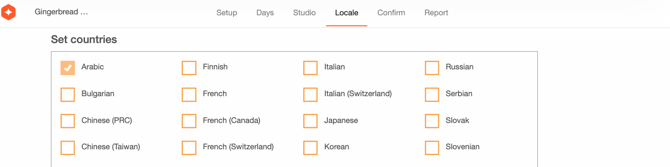
You can now add translations for every text field available in your experience.
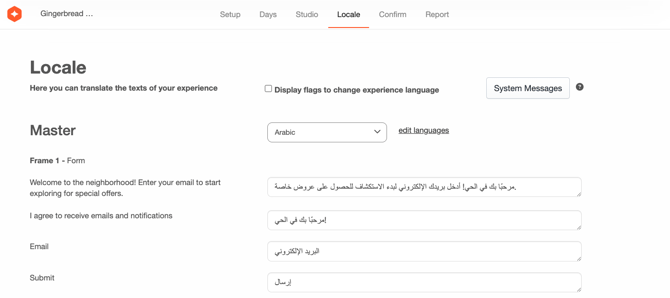
The experience will now show the appropriate language based on each customers language settings within their browser. however, if you would like to allow them to switch languages you can tick the 'Display flags to change experience language' checkbox at the top of the page.