Field Components are the building blocks of data capture within your Odicci experience. They allow you to gather vital information such as emails to store-specific feedback to ensure that every interaction translates into actionable data.
Overview
Where to find Field Components?
Once you open an experience or template, the toolbar is always available on the right-hand side of your screen. These components remain consistent across every type of experience you build.
The Golden Rule: Field IDs (Mapping)
Every component you add requires a Field ID. This is the "label" for your data that makes it readable once your campaign is over. For example, If you wish to capture customer emails in your experience, the Email field will introduce an email requirement for your end customers.
- Existent Fields: You can choose an ID you’ve already used elsewhere in your campaign.
- New Fields: Click the 'New' button and enter a unique name in the 'ID' box to create a fresh data category.
Once you have saved your new Field ID, you can now customise the field according to your brand requirements through the advanced formatting options.
.png?width=577&height=401&name=Frame%201490%20(2).png)
Component Directory
Contact Basics
Email: Introduces a field specifically for email addresses. Supports advanced security like Double verification and Double opt-in to stay compliant with GDPR.
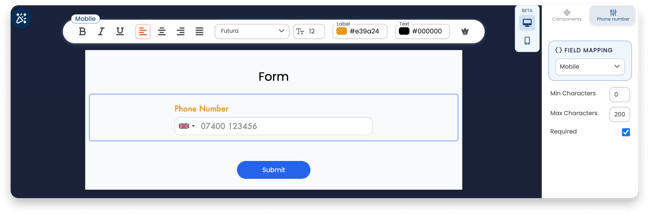
Phone Number: Captures mobile data and automatically generates country codes for the user.
Post Code: Collects user locations and can be mapped to specific "sites" in the options menu.
Written Responses
Text Field: A single-line box for short answers like names or "What is your favorite color?"
Text Area: A larger box designed for longer text, perfect for detailed customer feedback.
Number: Restricts input to numeric values only; you can also allow decimals in the settings.
User Selections
Dropdown: Users pick one option from a list. To add multiple choices, separate them with a semicolon (e.g., 'London; Paris; Berlin').
Radio Button: Allows users to "tick" one correct answer from a list. These can be displayed as a vertical list or inline (horizontal).
Opt-In: Specifically for marketing consent. You can use a standard layout, a two-option layout, or set the field to be pre-ticked.
Logic & Utility
Date: Ideal for birthdays. You can set specific Age Restrictions or choose your preferred date format.
Hidden Value: This is invisible to the user. Use it to organize data behind the scenes, such as tagging which country or gender version of an experience the user is seeing.
Unique Code: Allows users to input a previously received code (like a gift code) to redeem a prize.
Site List: Used to capture data regarding your physical Stores. You can configure this list in your account's Settings > Sites.
Styling & Options
Regardless of the component, you have full control over the Style and Options menus:
- Brand Matching: Customize Label color, Text color, and Corner Roundness to match your brand requirements.
- Validation Rules: Set Minimum/Maximum field length and toggle whether a field is Required before a user can proceed.