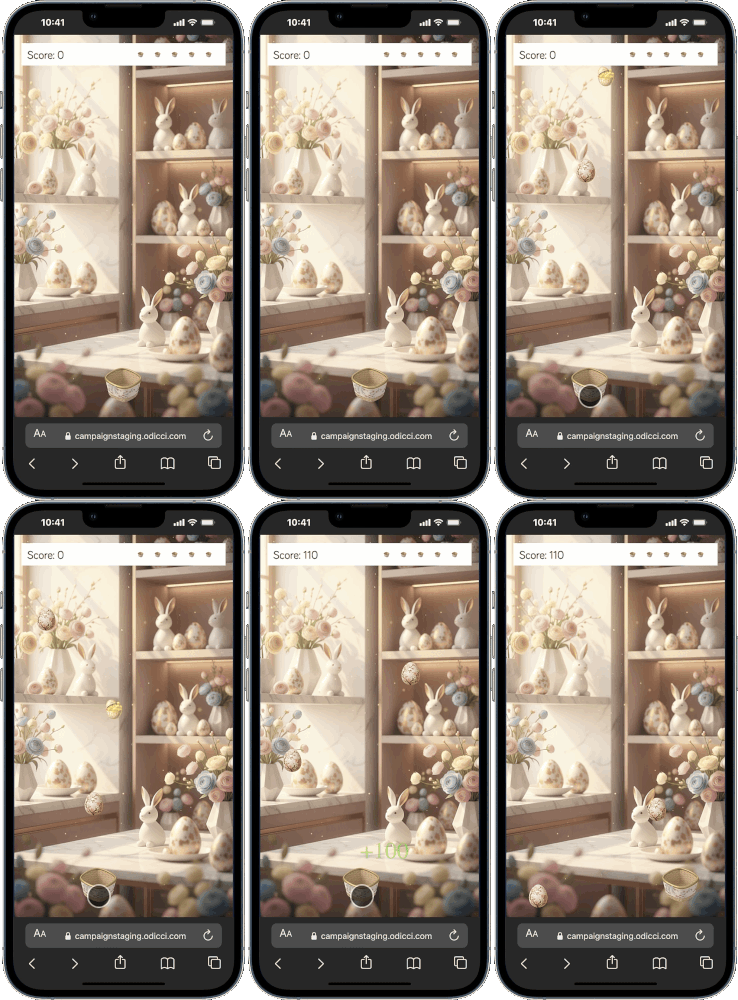
The Drop Game is a high-energy, "skill-based" experience perfect for capturing customer data during live events or through on-pack QR codes.
Journey Overview
- The Starting Line: Choosing your creation path
- The Rewards: Configuring your offers
- The Studio: Configuring game mechanics and mapping
- The Leaderboard: Setting up scores and values
- The Launch: Exporting for Iframe, Facebook, or Pop-ups
Step 1: Choosing Your Path
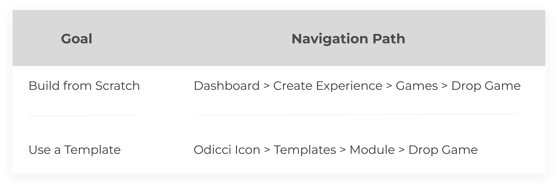
There are two ways get started within the Odicci configurator:
Step 2: Configuring Your Offers
In the Drop Game, the rewards don’t have to be "one size fits all." You can use the Offer Allocation feature to tailor your prizes to how well a player performs, turning a simple game into a high-stakes competition.
Tiered Rewards: The Offer Allocation Feature
Exclusively available for game experiences, this feature allows you to allocate specific offers based on the final score a customer achieves.
Getting Started: Navigate to the Offers Setup menu and select the Offer Allocation tab.
Defining Your Rules: Click + Add condition to create a new scoring rule for your prizes.
Scoring Logic: Select Score from the dropdown menu to define your requirements.
You can set a single condition (e.g., Score is greater than 1000) or combine conditions to create a specific scoring range (e.g., Score is greater than 500 AND less than 1000).The
.png?width=485&height=369&name=Frame%201494%20(1).png)
Safety Net: Fallback Offers
When you enable Offer Allocation, the system requires a "Safety Net" to ensure no player leaves empty-handed.
The Fallback Category: A new category named Fallback will appear in your dropdown.
Mandatory Requirement: You must set a Fallback offer before your experience can be published.
Unlimited Winning: The Fallback prize must be set as an Unlimited Offer. This ensures that even if your tiered "Big Winner" prizes run out, there is always an offer available to show your customers.
.png?width=484&height=570&name=Frame%201495%20(1).png)
Step 3: Configuring Game Logic (The Studio)
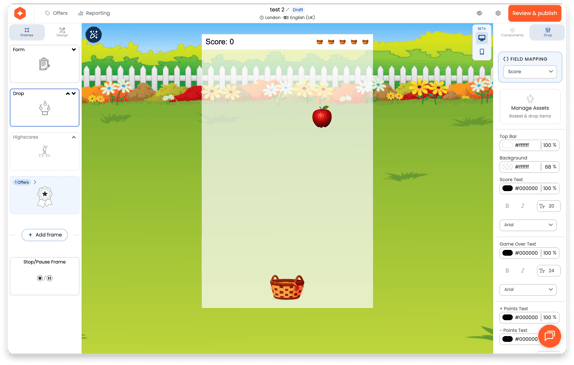
Once you are in the Studio, all game-specific features are managed in the Right Navigation Pane.
Mapping & Reporting
Field ID: Assign a unique name here. This is where the game scores will be stored in your reporting section for easy analysis later.
Styling the Arena
Background: You can change the background image through Frame Settings using the Cog in the Drop Frame. You can also change the background colour using the right side pane.
Basket - Through the Manage Assets option, you can select the Image for the basket. Please note that the same image will be used for the total lives that appears on the top right corner.
.png?width=502&height=532&name=Frame%201490%20(2).png)
Game Setup (The Mechanics)
Items: Upload the image that will act as the ‘catch’ item.
Item Value: Each drop image can be provided with a specific point value. This value determines the final score and leaderboard ranking.
Drop Rate: Define how frequently or fast each item falls. This is key to balancing the difficulty of your game.
.png?width=566&height=265&name=Frame%201497%20(1).png)
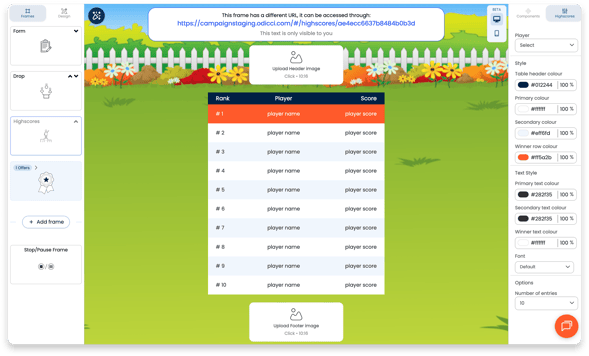
Step 4: The Leaderboard & Results
After the game ends, players see a leaderboard showing their rank against others.
- Logic: The scores are calculated based on the Item Values caught.
- Finalizing: Once the build is complete, move to the Confirm screen to perform your final checks.
Step 5: Going Live
When you hit Publish, Odicci provides several ways to share your experience:
- Direct URL: For social media or email.
- Iframe Code: To embed the game directly onto your website.
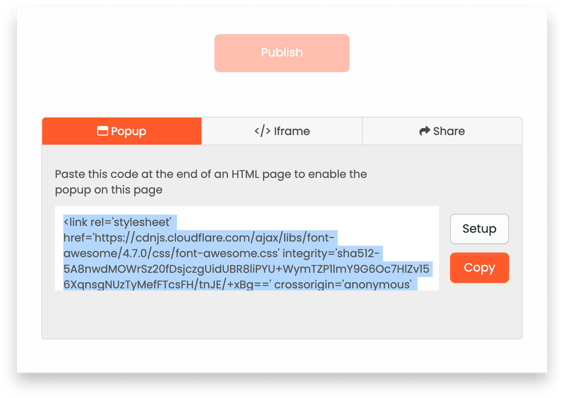
- Pop-up & Facebook: Specific codes for seamless integration into other platforms.