
Once you have brought your experience to life, the Configurator acts as the brain behind the scenes. It is where you fine-tune the advanced settings, security, and technical metadata that make your campaign professional and secure.
Overview
How to Access the Configurator
Getting into the backend is simple:
- Open your experience in the Design Studio.
- Locate and press the cog icon in the top right-hand corner of your screen.
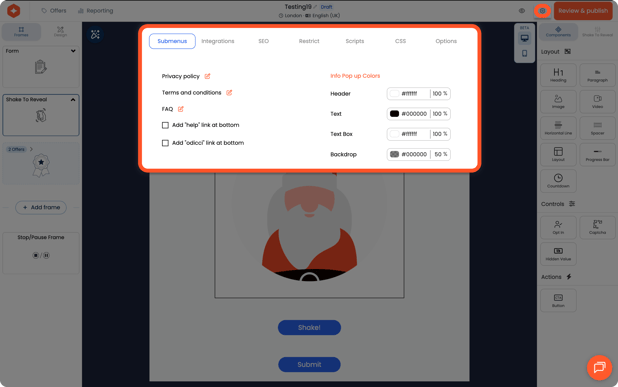
Navigation Menu Breakdown
The Configurator is organized into several submenus to keep your workflow organized. Here is what you can adjust in each section:
Submenus (Legal & Footer)
Control the fine print and footer links of your experience:
- Privacy Policy & Terms and Conditions: Input your official legal documentation.
- FAQ: Add a dedicated frequently asked questions section for your users.
- Footer Links: Toggle a "Help" link or the "Odicci" attribution link at the bottom of the page
Integrations
- Field Mapping: Configure exactly how your experience data maps to your external CRM or third-party integrations
SEO (Search Engine Optimization)
Ensure your experience looks great when shared on social media or found via search:
- Page Title: Set the primary title that appears in browser tabs.
- Meta Description: Write a brief summary for search engine results.
- Keywords (Tags): Add relevant tags to help with discoverability.
Restrict (Security & Access)
Manage who can enter your experience and how often:
- Experience Restrictions: Enable or disable global entry rules.
- Access Blocking: Prevent multiple entries by blocking the same IP address, email address, or a specific data field.
- Custom Messaging: Write the specific message users see when they are blocked from entering.
- Refresh Rules: Choose when these restrictions should be released or refreshed (e.g., allowing a user to play again after 24 hours).
Advanced Tools (Scripts & CSS)
For the power users who want total control:
- Custom Scripts: Input tracking codes like Google Analytics or other custom JavaScript.
- Custom CSS: Add your own stylesheets to achieve designs that aren't possible through the standard formatting options.
Options (Global Settings)
Set the high-level rules for your campaign:
- Multilingual: Enable the ability to run your experience in multiple languages.
- Unique Entry Codes: Require users to enter a specific code to gain access to the experience.
- Timezone: Adjust the default timezone to match your target audience.