
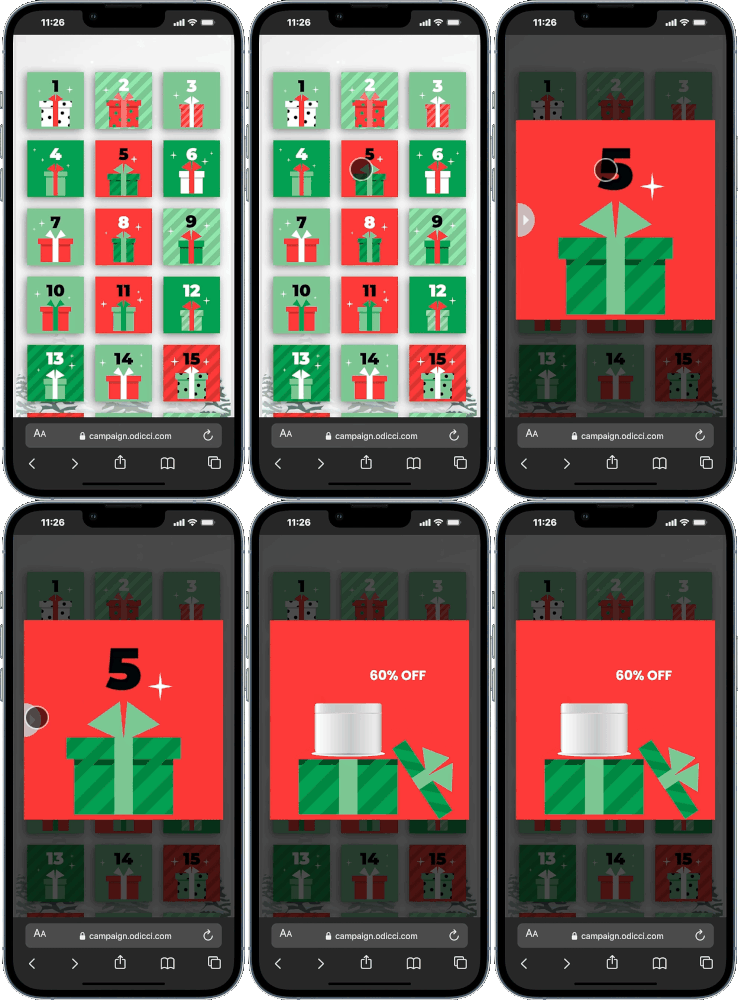
The Advent Calendar is a high-retention experience designed for recurring engagement. By revealing a new surprise or offer each day, you create a daily habit for your customers to return to your brand.
Note: This guide focuses specifically on the set-up for the Advent Calendar. For general setup and offer configuration, see our Design Your First Experience guide.
Journey Overview
- Step 1: Choosing Your Path - Choosing your creation path
- Step 2: The Foundation - Setting up basic details for your calendar
- Step 3: The Daily Drop - Organizing offers for every door
- Step 4: The Customisation - Designing the calendar
- Step 5: Launch - Publishing your calendar
Step 1: Choosing Your Path
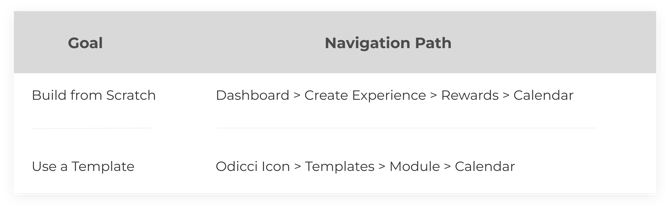
To begin your countdown, choose your creation path:
Step 2: The Foundation
Before you start designing the experience, define how your calendar should function in the Setup menu:
- Campaign Identity: Enter a Name for internal tracking and select your Language.
- Calendar Type: Choose a standard 12 or 24-day format, or set Custom dates.
- Timing & Accuracy: Select your Starting Date and specific Timezone to ensure doors open exactly when intended.
- Logic: Check the Random Order box if you want the dates to appear non-linearly.
- Day Visibility: Control exactly which days your participants can interact with. You can choose to let them View current day, View previous days + current day, or View all days at once.
- Engagement: Link a Success Email to trigger when a user enters the experience.
.gif?width=670&height=420&name=Untitled%20design%20(3).gif)
Step 3: Managing Daily Offers
Navigate to the Offers menu in the top left corner to organize rewards for each door.
- Offer Details: Set the Name, choose between Winner/Loser types, and select your Offer Type (Rewards or Vouchers).
- Inventory Control:
- Rewards: Enter the available quantity or check 'Unlimited' (e.g., for discount codes).
- Overflow Offer: If you set a limited quantity, the system automatically creates an overflow offer for customers who open the door after rewards run out.
- Vouchers: Choose between Manual Upload (requires a .csv file) or a Voucher API.
- Visuals & Flair:
- Offer Image: Upload a visual (Recommended size: 500x500 px; formats: JPEG, PNG, SVG, or GIF).
- Theatre: Toggle the Confetti Effect for a winning reveal.
- Notifications: Select an Email Template and use 'Notify Others' to alert team members of a win.
%20(1).gif?width=670&height=420&name=Untitled%20design%20(1)%20(1).gif)
Step 4: The Customization
Once offers are set, enter the Studio to style your blank canvas. Start by completing your Form frame for data capture, then customize the Calendar frame:
- Reveal type - Scratch/Peel/Slide/Random
- Animation - None/Beat/Swivel/Twinkle
- Numbering - Auto/Images
- Number colour - ON/OFF
- Number size - Small/Medium/Large
- Layout Simple Grid/Grid A/Grid B
- Select your Day images and Offer images
Success & End Frames
- Success Frames: A unique offer frame is automatically available for every day of your experience. Use Static Components to build each day's big reveal.
- Stop/Pause Frame: Customize the page that appears if the campaign is paused or the duration has ended.
.png?width=604&height=383&name=Frame%201491%20(1).png)
Step 5: Going Live
Head to the Confirm screen to finalize your build and hit Publish. You can then access codes for Pop-ups or Iframes to embed your calendar across your platforms.