
The Swipe To Enrich is a fun, "Tinder-esque" experience that uses an image-based interface to collect customer data.
Note: This guide focuses specifically on the set-up for Swipe To Enrich. For general setup and offer configuration, see our Design Your First Experience guide.
Journey Overview
- Step 1: Choosing your creation path
- Step 2: Customizing the Swipe Card
- Step 3: Rewards & Advanced Logic
- Step 4: Going Live
Step 1: Choosing your creation path
There are two ways to build this experience:
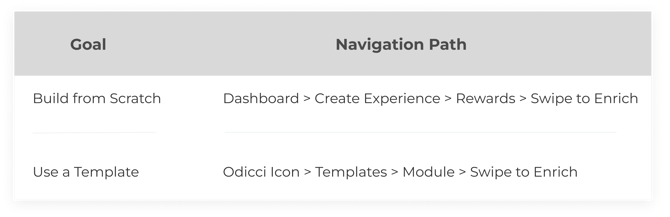
Step 2: Customizing the Swipe Card
Click on the Swipe Card frame to access customisation settings. Here, you can define the core identity and look of your experience:
Field Mapping: Use the dropdown to link your swipe results to a specific data field or profile. This ensures customer choices are correctly categorized in your reports.
Typography & Styling: You can now fully style the text within your cards. Set the Font family and Font size to match your brand's digital identity.
Upload Swipe Image: Click the designated upload area to add your primary visual content. For a perfect fit in the studio, use an image with a 0.69 ratio.
Swipe Action Styling: Define the specific colors for the "Accept" and "Reject" feedback
Buttons for Desktop/Mobile: Toggle these checkboxes to add dedicated interaction buttons below the swipe area for specific devices.
Show Hand Guide: Enable this visual cue to provide a "tinder-esque" hand cursor that guides new players on how to swipe.
.gif?width=670&height=420&name=Untitled%20design%20(3).gif)
Step 3: Rewards & Advanced Logic
Configure your rewards in the Offers page. You can assign specific notification emails and images for each offer; these images will then appear during the "slide to reveal" moment.
Device Flexibility: Use the checkboxes to automatically add interaction buttons below the swipe area specifically for Desktop or Mobile users to ensure ease of play on any screen.
Step 4: Going Live
Once your build is finalized, move to the Confirm screen to set up your final integrations and launch:
- CRM Integration: Check the integration box to link your results to your CRM.
- Publishing: Access your Pop-up or Iframe to embed the experience across your digital channels.
That’s all! congratulations on your Swipe to Enrich Experience!