
Locations can be imported into Odicci for use within data capture or to provide offer filtering based on locations. This guide walks you through the end to end setup of these features.
Overview
Setup Overview
To access sites go to ODICCI Admin followed by Settings.
Sites is used for identifying the origin of the data, where it has been collected or enriched. A site is usually used for locations for example a retail store, a restaurant, a museum, etc.
Add new locations manually or import a list of multiple sites in one go, and manage existing sites.
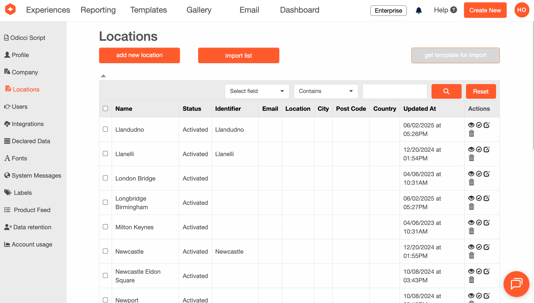
Add new sites manually
- Click on Add New Site
- Fill in all the fields and click Save
Import a list of locations
To import locations we recommend you to use the CSV template available under "get template for import"

- Click on Import List
- Choose your CSV file and click on Import
Manage existing locations
Management actions on sites include: Search, View, Activate/Deactivate, Edit and Delete.
Creating a location dropdown
Once you have imported locations, you can begin to use the 'Site List' component within your form frames.
- Drag and drop the 'Site List' component into your form.
- Choose your field name to map the data to.
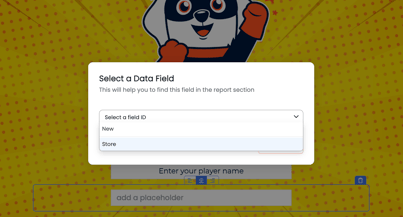
- Click 'Sites configuration' on the right-hand navigation.
- Select which sites you would like to make available from the dropdown.
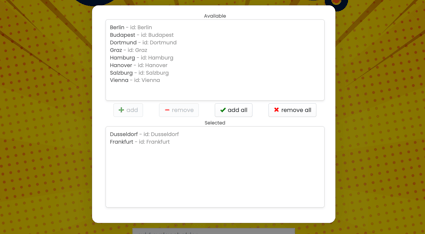
- Preview your new site dropdown.
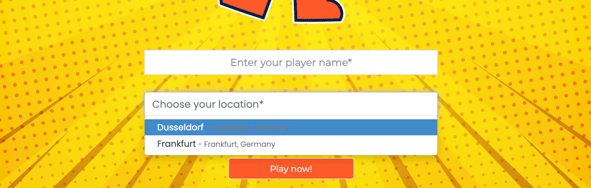
Setting up location specific offers
Offers can be restricted to specific locations. Once enabled, only those locations selected will have the offer available. A location dropdown must be used on the form frame to enable this functionality.
- First add your location field to your form frame following the steps above.
- Return to your offer configuration and tick the checkbox to enable 'Site Filtering'.
- Add the locations you'd like to make the offer available to and the quantities for each location.
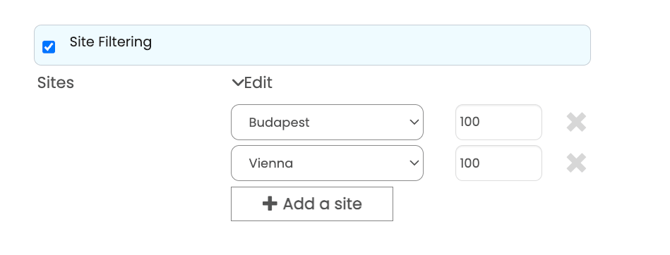
Your offer will now only be available to be allocated to the selected locations. If one of the locations is selected by a customer, they will be allocated based on the chances set in your configuration. If they select a non-participating location, this offer will be removed from the prize pool for that customer.