Question frames provide customers with total freedom to answer in their own words. Unlike multiple-choice options, these frames allow for open-ended feedback, suggestions, or creative responses, making them an essential tool for qualitative data collection.
Step 1: Adding the Frame
To start collecting open-ended responses:
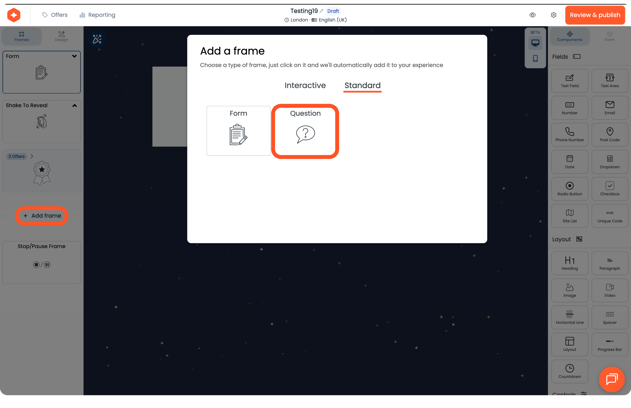
- Create: Select the "+" icon from the left-hand navigation.
- Locate: Choose Question from the Standard tab.
- Identify: The name you give your frame automatically populates the header and serves as the field mapping ID for any submitted answers.
Step 2: Crafting Your Question
Once the frame is added to your canvas, you can define the specifics of the interaction:
- Define the Ask: Enter the specific question or statement you want the customer to address.
- Placeholder Text: Add helpful placeholder text inside the answer field to guide the customer on what to type.
- Character Limits: Keep in mind that there is a maximum character count of 250 per answer.
.png?width=630&height=408&name=Frame%201494%20(1).png)
- Text Styling: Use standard text formatting to match the question and answer field to your brand’s aesthetic.
- Mandatory Responses: Under the Options menu, you can toggle the Required setting. When enabled, the customer must enter an answer to proceed to the next frame in the experience.