
Integrating Odicci with Loyalty Lion allows you to create seamless experiences by combining Odicci's interactive content creation platform with Loyalty Lion's customer loyalty and digital marketing solutions. This document outlines the steps required to integrate Odicci with Loyalty Lion.
Overview
- Step 1: Getting Connected
- Step 2: Offer Configuration
- Step 3: Studio Configuration
- Step 4: Reporting
Getting Connected
Prerequisites
- Access to both Odicci and Loyalty Lion accounts
- API credentials for Loyalty Lion
- Bearer token with read_customers & write_customers permission granted
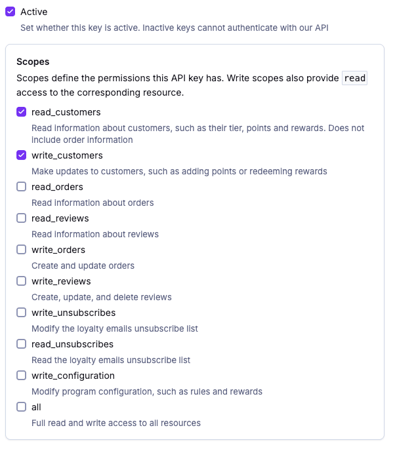
- Bearer token with read_customers & write_customers permission granted
Integrating your Loyalty Lion account with Odicci
- Hover over your profile icon on the top right of the screen.
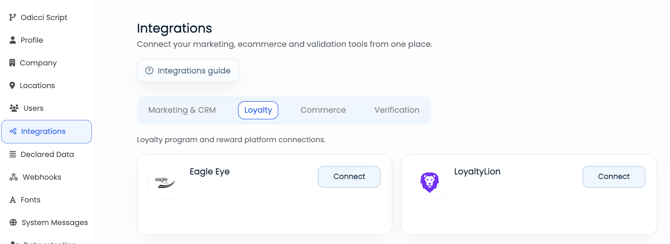
- Click Settings. Then Click Integrations.
- Select the Loyalty tab and click Connect on the Loyalty Lion tile
-
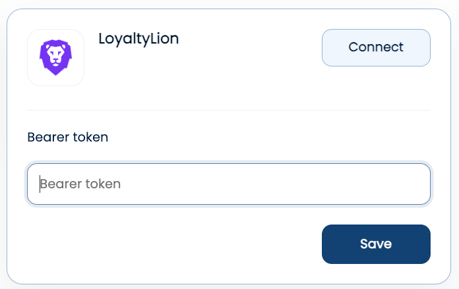
Enter your bearer token and click save
Offer Configuration
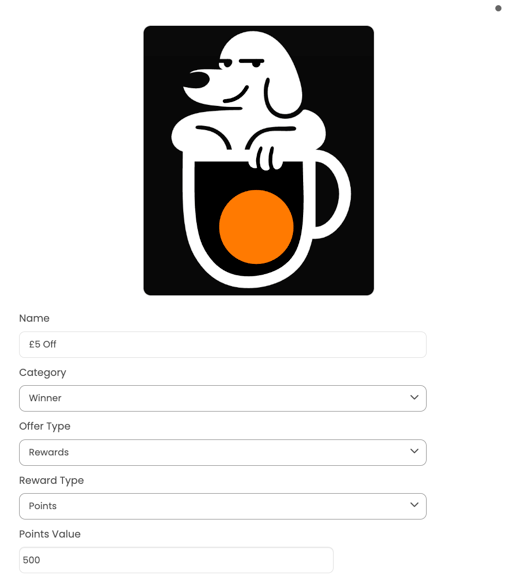
When the Loyalty Lion integration is connected, it enables the option to assign points as offers. These can be configured by selecting 'Rewards' as the offer type.
Points
When points is selected you must choose set an amount of points to be allocated upon winning the offer.
Studio Configuration
To activate the Loyalty Lion integration at an experience level, you first need to make a either email address or merchant ID available to use in the API calls. To do this you can either add one as a hidden field onto the first frame of your experience or a editable field by the user.
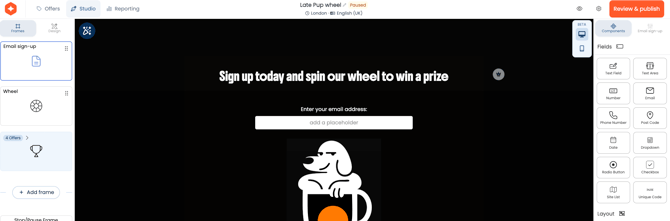
Once added, you can now enable the Loyalty Lion integration for the experience via the studio configuration.
- Click the configuration cog.
- Select the integrations tab and tick the checkbox to enable the integration.
- Map 'points_value' and either email or merchant_id as a minimum
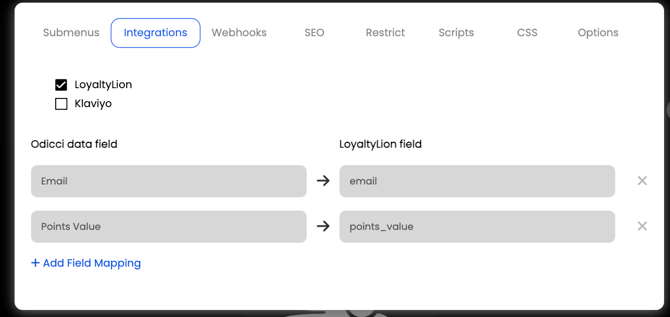
Error Messaging
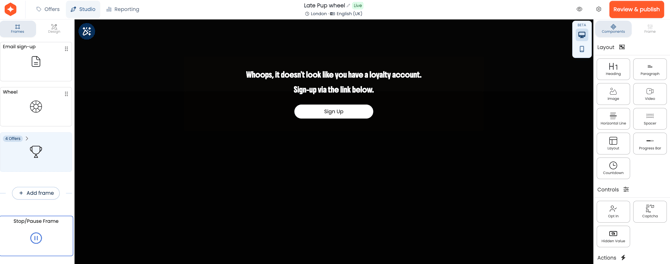
If a customer does not have a valid Loyalty Lion account, they will be prevented from playing the game and will instead will be shown the 'Stop/pause' frame.
This can be accessed on the bottom left of your frames and can be customised to match your branding and messaging requirements.
Reporting
Once your experience is live, you can check on the status of the integration pushes within the reporting by referring to the 'integration push' column in the 'All Entries' report.
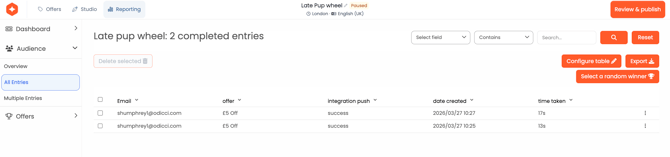
Here are the different status types:
- success - a full push has taken place and been successfully received by Loyalty Lion
- failed - the integration push failed (contact customer support if this persists), if a user does not have a valid